How to Print Puzzles: Crisp, Clean Results Every Time
To print puzzles cleanly, set your page to fit the paper, check your margins, choose black-and-white to save ink, and print one test page before running a full batch. Those few steps are the difference between sharp, easy-to-read puzzles and a stack with cut-off grids or faded letters. The good news: it takes about a minute to get right.
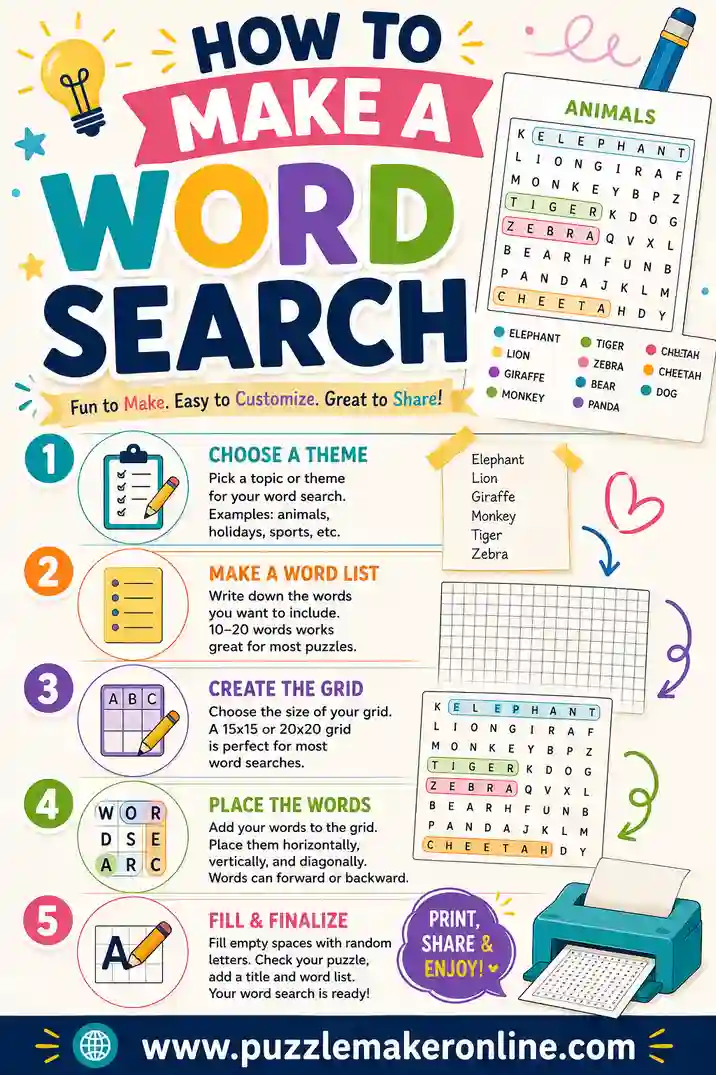
Want a print-ready puzzle this second? Open the free puzzle maker, paste in a word list (there's one below), and print a clean word search, crossword, or scramble. No sign-up, no software.
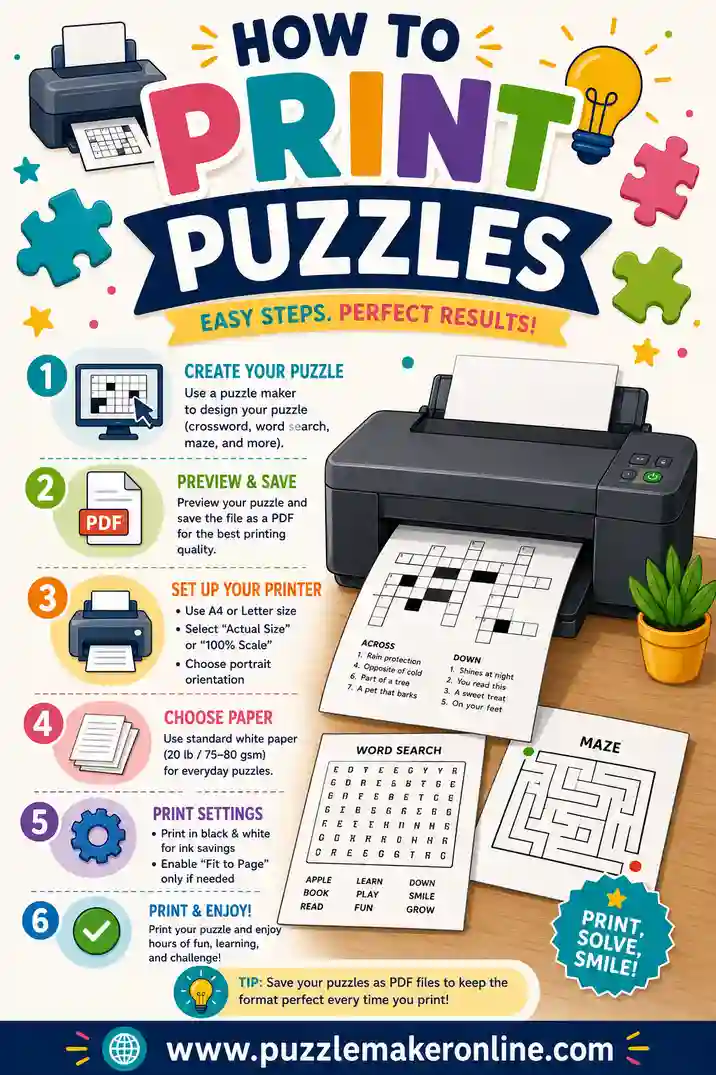
The Quick Version
If you only remember five things, remember these:
- Use "Fit to page" so the whole grid lands on the paper.
- Set normal or minimum margins so nothing gets clipped.
- Print in black and white for crisp letters and low ink use.
- Pick the right paper. Regular for one-time use, cardstock for reuse.
- Print a test page first before you commit to a big stack.
Do those and your puzzles will come out clean nearly every time. The rest of this guide explains each step and the common snags to dodge.
Step 1: Set Up the Page
Most printing problems start before you ever hit print. A quick check of your page settings prevents the big ones.
- Orientation. Portrait suits most single puzzles. Landscape can help a very wide grid fit better.
- Scale. Choose Fit to page or Shrink oversized pages so a large grid doesn't spill off the edge.
- Margins. Normal margins are fine for most puzzles. If a grid is getting clipped, switch to minimum or narrow margins.
- Paper size. Confirm it matches your actual paper, usually Letter in the US or A4 elsewhere. A mismatch here is the number one cause of cut-off puzzles.
A quick look at the print preview catches most issues before you waste a sheet.
Step 2: Choose the Right Paper
The paper you use depends on how long the puzzle needs to last.
| Paper type | Best for | Notes |
|---|---|---|
| Standard 20 lb | One-time use, big batches | Cheapest, totally fine for most puzzles |
| Cardstock (65–80 lb) | Reusable cards, kids | Sturdier, survives erasing and handling |
| Bright white | Maximum contrast | Letters pop, easiest to read |
| Recycled | Eco-friendly classrooms | Slightly grayer, still readable |
For a classroom set or a party, standard paper is perfect and economical. For puzzles you'll laminate or reuse, cardstock holds up far better.
Step 3: Dial In the Ink Settings
Smart ink settings keep your puzzles sharp and your cartridges lasting longer.
- Black and white is your friend. Puzzles are almost always pure text, so color does nothing but burn ink. Choose grayscale or black-only.
- Use "Normal" or "High" quality for the grid. Draft mode can leave letters faint and hard to read.
- Skip background graphics if your print menu offers that option, to save ink on borders.
- Watch for low cartridges. Faint, streaky letters make a word search genuinely hard to solve.
If your printer supports it, an "economy" black-and-white setting at normal quality is the sweet spot, clear letters, minimal ink.
Step 4: Always Print a Test Page
This single habit saves the most paper and frustration. Before you print 30 copies, print one.
A test page lets you confirm:
- The whole grid fits with nothing cut off.
- The letters are dark and easy to read.
- The margins look right.
- The paper size matches.
If the test looks good, run the rest. If not, you've wasted one sheet instead of thirty. It's the cheapest insurance in printing.
Common Printing Problems and Fixes
Most print problems have a quick, obvious fix once you know what's going on. Here are the usual suspects.
The grid is cut off
Your scale or paper size is off. Turn on Fit to page, switch to minimum margins, and double-check the paper size matches what's loaded.
Letters look faint or streaky
Your cartridge is low or you're in draft mode. Bump the quality to normal or high, and replace the cartridge if letters are still patchy.
The puzzle prints tiny
Scaling is set too low. Turn off any "shrink" option and use Fit to page instead, or set the scale to 100% and check that the grid was sized correctly.
It prints on multiple pages
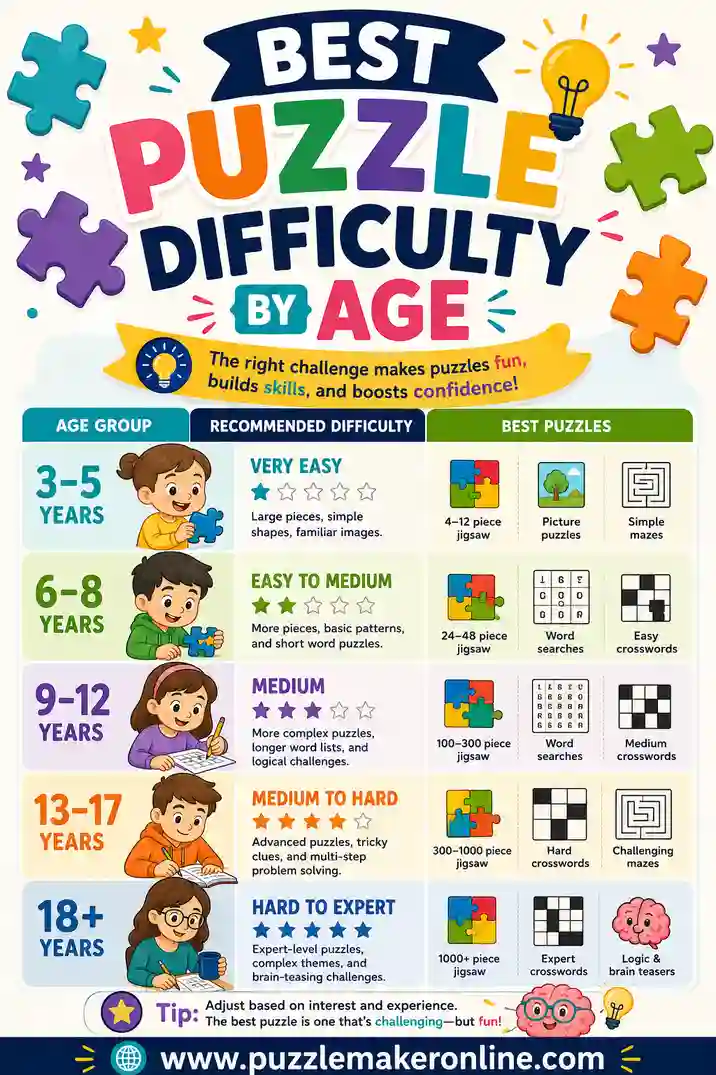
The puzzle is larger than one sheet. Use Fit to page, switch to landscape, or rebuild the puzzle with a smaller grid. Our guide on best puzzle difficulty by age can help you pick a grid that fits comfortably.
Colors print when you wanted black
Your print menu defaulted to color. Find the grayscale or black-and-white option and select it before printing.
Printing for Different Settings
Where you're printing changes the best approach. Here's how to tailor it.
Classrooms
- Print a full class set plus a few spares.
- Use standard paper to keep costs down.
- Black and white saves the school's ink budget.
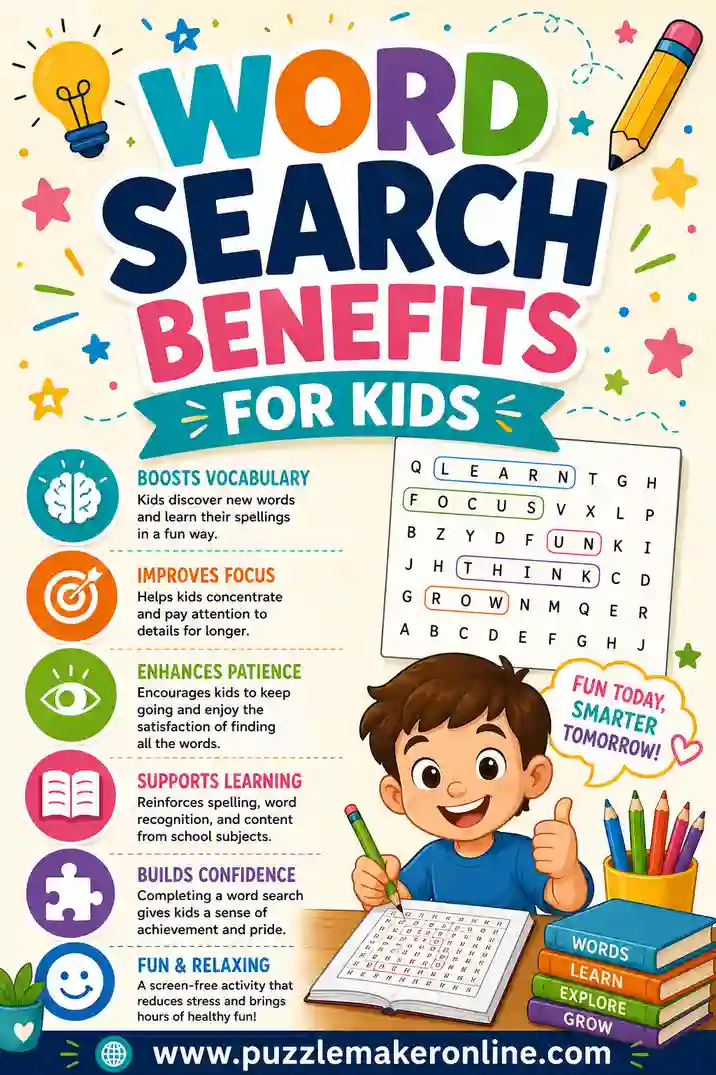
- Larger print helps early readers, especially handy with word search benefits for kids in mind.
Parties and events
- Cardstock feels nicer in guests' hands.
- Print a few extras for latecomers.
- Consider laminating if you want them reusable.
Home and seniors
- Use large print and high contrast for easy reading.
- Bright white paper makes letters pop.
- Cardstock holds up if you're using dry-erase markers.
Free Printable Word List (Copy & Paste)
Here's a ready-to-use list of 27 words to drop straight into the maker before you print. Copy a column, or mix across them. They suit word searches, crosswords, and scrambles.
| Printing Terms | Home & Office | Fun & Theme |
|---|---|---|
| Paper | Pencil | Holiday |
| Printer | Stapler | Vacation |
| Margin | Folder | Birthday |
| Preview | Desk | Carnival |
| Inkjet | Lamp | Festival |
| Laser | Window | Picnic |
| Portrait | Coffee | Garden |
| Cardstock | Notebook | Sunset |
| Landscape | Calendar | Rainbow |
Swap in your own theme any time. The printing tips above work no matter what words you choose.
Reusable Puzzles: Print Once, Use Many Times
Want puzzles that survive more than one sitting? A few choices make them last.
- Print on cardstock. It resists bending and tearing.
- Laminate them or slip them into clear sheet protectors.
- Use dry-erase markers so solvers can wipe and redo.
- Store them flat in a folder so they stay crisp.
This is perfect for classrooms, waiting rooms, or a family that wants to solve the same favorites again and again. One print job, months of use.
Printing from a Phone or Tablet
Not at a computer? You can still get a clean print straight from a phone or tablet, it just takes a slightly different path.
- Use AirPrint or a printer app. Most modern printers connect over Wi-Fi. On an iPhone or iPad, tap the share icon, then Print. On Android, use the built-in print service or your printer's app.
- Check the preview carefully. Small screens make it easy to miss a clipped grid. Pinch to zoom into the corners of the preview and confirm nothing's cut off.
- Set the paper size in the print dialog. Phones sometimes default to a different size than your printer holds, which is a common cause of cut-off puzzles.
- Save as PDF first if you're unsure. Printing to a PDF lets you check the full layout, then send that clean file to the printer or email it to print elsewhere.
If you don't have a printer at home at all, save the puzzle as a PDF and print it at a library or copy shop. A PDF keeps the layout locked, so it looks the same wherever it lands.
Putting It All Together
Here's the full flow from word list to finished stack.
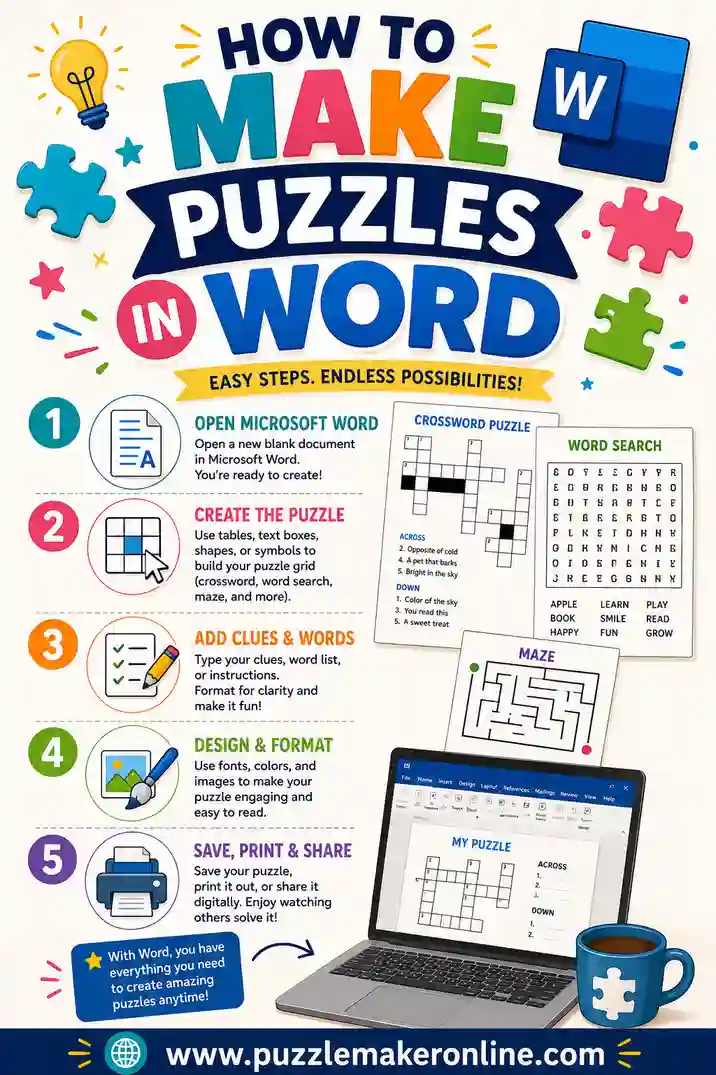
- Build the puzzle. Open the puzzle maker, paste your words, and pick your settings. If you'd rather build by hand, see how to make puzzles in Word.
- Open print and check preview. Confirm fit, margins, and paper size.
- Set black and white, normal quality.
- Print one test page.
- Run the full batch on your chosen paper.
Follow that order and you'll get clean, readable puzzles every time, with no wasted paper and no cut-off grids.
Frequently Asked Questions
Why does my puzzle keep getting cut off when I print?
Almost always a scale or paper-size mismatch. Turn on "Fit to page," switch to minimum or narrow margins, and confirm the paper size in your print menu matches what's loaded (Letter in the US, A4 elsewhere). Check the print preview before you commit.
What's the best paper for printing puzzles?
Standard 20 lb paper is perfect for one-time use and big batches. For puzzles you want to reuse, especially with dry-erase markers, cardstock is sturdier and holds up to handling. Bright white paper gives the best contrast for easy reading.
Should I print puzzles in color or black and white?
Black and white. Puzzles are almost entirely text, so color just wastes ink without improving readability. Choose grayscale or black-only, keep the quality at normal or high, and your letters will stay crisp.
How do I print puzzles without wasting ink?
Use black-and-white at normal quality, skip background graphics if the option exists, and always print a single test page before a full batch. That test page is the biggest ink-saver, it catches problems before you print thirty faded copies.
How can I make printed puzzles reusable?
Print on cardstock, then laminate them or use clear sheet protectors. Solvers mark answers with dry-erase markers and wipe the sheet clean afterward. Store them flat in a folder and a single print job can last for months.
What print settings work best for kids and seniors?
Use large print and high contrast. Bright white paper with dark, normal-or-high-quality black letters is easiest on the eyes. For kids, a bigger grid with fewer words prints larger and is friendlier to find; the same large-print approach helps seniors read comfortably.
Ready to Print Clean, Sharp Puzzles?
Printing puzzles well is mostly about a few quick checks: fit the page, set your margins, go black and white, and test one sheet first. Grab the word list above, open the free puzzle maker, and you'll have a crisp, ready-to-print word search, crossword, or scramble in minutes. It's free, there's no sign-up, and every puzzle comes out clean. Load the paper and print away.