How to Make Puzzles in Word (And a Faster Free Way)
You can make puzzles in Microsoft Word using tables for the grid and shapes or text boxes for clues, then type your words in by hand. It works, but it's slow and fiddly, especially for word searches where you have to place every letter yourself. If you just want a clean, printable puzzle fast, a free puzzle maker builds it for you in seconds, no manual grid-building required.
Want to skip the hassle? Open the free puzzle maker, paste in any word list (there's one below), and print a finished word search, crossword, or scramble. No sign-up, no software to learn.
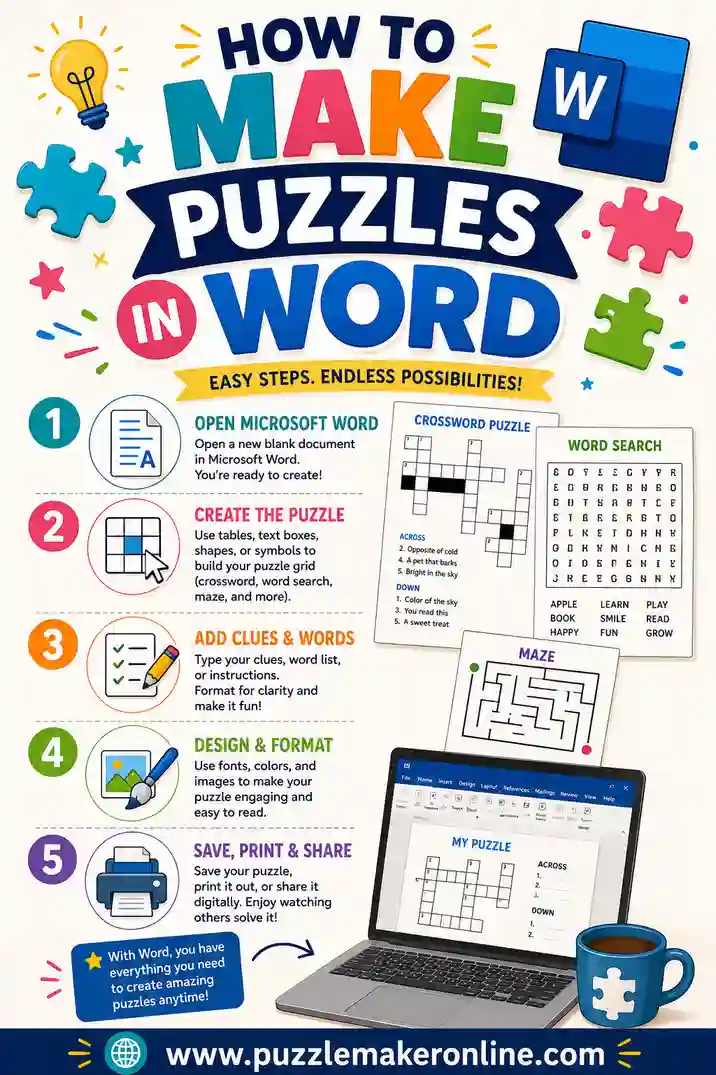
Can You Really Make Puzzles in Word?
Yes, you can. Word has all the basic pieces you need: tables for grids, text boxes for clue lists, and shapes for borders and decoration. People build crosswords, word searches, and fill-in puzzles in Word all the time.
The honest catch is the effort. Word doesn't know it's making a puzzle, so it won't hide words, generate a grid, or check that your crossword answers actually intersect. You do every bit of that by hand. For a one-off, that's fine. For a stack of unique puzzles, it gets tedious fast.
Below you'll find the step-by-step Word method, plus the faster route when you'd rather not fuss with cells and borders.
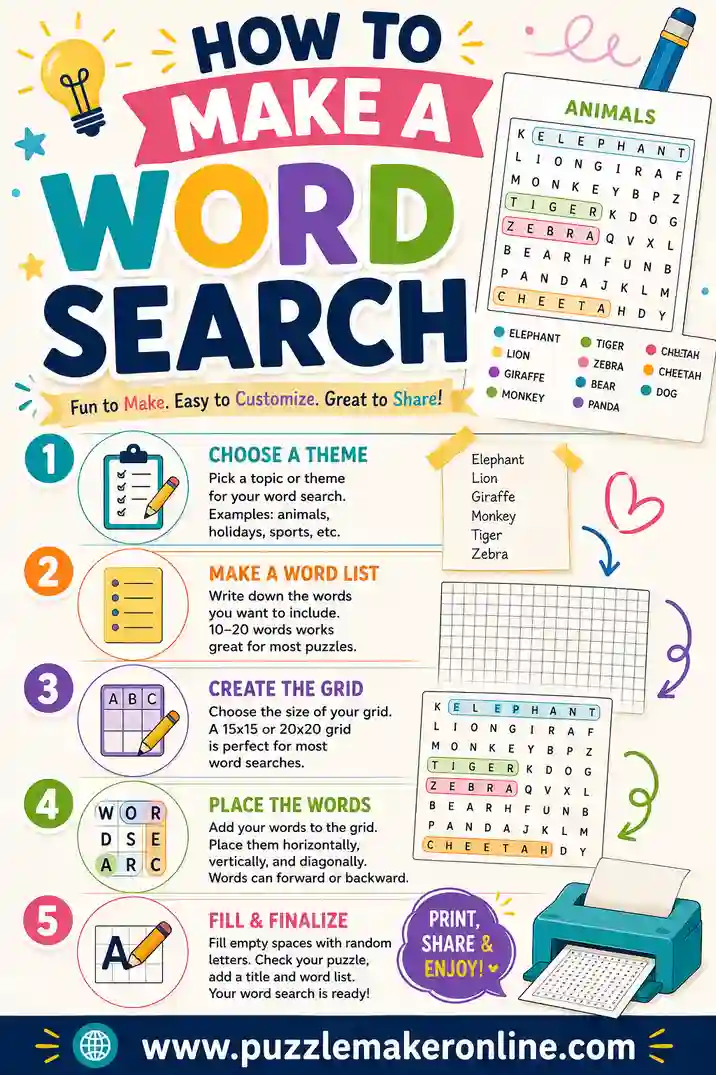
How to Make a Word Search in Word
A word search is a grid of letters with your target words hidden inside, padded out with random letters. Here's how to build one in Word.
- Insert a table. Go to Insert → Table and drag out a square grid, say 12×12. Each cell holds one letter.
- Make the cells square. Select the table, then under Layout set the row height and column width to the same value (around 0.3 inches works well).
- Center the text. With the table selected, set horizontal and vertical alignment to center so letters sit neatly.
- Place your words. Type each target word letter by letter across, down, or diagonally. Plan overlaps on scratch paper first.
- Fill the blanks. Type random letters into every empty cell. This is the slow part, and it's easy to leave gaps.
- Add the word list. Below the grid, type the list of words to find.
- Hide the gridlines. Select the table, then Borders → No Border so it looks like a clean letter field, not a spreadsheet.
It works, but expect to spend a while, and proofread carefully. One stray letter can break a word.
How to Make a Crossword in Word
Crosswords are trickier because answers have to cross at shared letters. Here's the manual approach.
- Design the layout on paper. Sketch where words go and where they intersect. This is the hardest part, and Word won't help you.
- Insert a table sized to fit your layout, again with square cells.
- Black out unused cells. Select the cells that aren't part of any word and shade them black (Table Design → Shading).
- Number the squares. Add a small number to the first cell of each word, across and down.
- Type the clue list. Below or beside the grid, list your Across and Down clues by number.
- Decide on an answer version. Keep a filled copy for yourself and leave the player's copy blank.
Building the intersecting layout by hand is genuinely fiddly. If a word doesn't fit, you redraw, and a generator avoids all of that.
Make a Crossword in Word: 7 Exact Steps (With Menu Paths)
The quick crossword steps above give you the big picture. If you want to follow along click by click, here is the same job broken into seven exact steps, with the menu names you will see in current desktop versions of Word for Windows and Mac. Menu labels can shift a little between versions, but every option below has been part of Word for years.
- Set up the page. Open a blank document and go to Layout → Margins → Narrow so the grid has more room. For a big 15×15 grid with clues on the side, switch to Layout → Orientation → Landscape. For a smaller grid with clues underneath, stay in Portrait.
- Insert the grid. The quick table picker under Insert → Table only drags out about 10 columns by 8 rows, so for a full crossword choose Insert → Table → Insert Table instead and type the exact size. A 9×9 grid suits beginners and kids; 13×13 or 15×15 is the classic newspaper size.
- Make every cell a perfect square. Select the whole table (click the small four-arrow handle at its top-left corner). Open Table Properties from the right-click menu. On the Row tab, tick Specify height, enter 0.35", and set Row height is to Exactly. On the Column tab, set Preferred width to the same 0.35". The word "Exactly" matters: without it, rows grow as soon as you type a number in a cell.
- Shade the black squares. Hold Ctrl (or Cmd on a Mac) and click each cell that is not part of an answer, then choose Table Design → Shading → Black. Doing them all at once keeps the color consistent and saves dozens of clicks.
- Number the starting squares. Select all the white cells, set the alignment to Top Left (Layout tab, Alignment group), and drop the font size to about 7 pt. Now type a small number in every cell where an Across or Down answer begins, counting left to right, top to bottom. The numbers sit neatly in the corner and leave room for the solver to write.
- Lay out the clues with tab stops. Below or beside the grid, type the heading Across, then each clue as number, Tab, clue text. Open Home → Paragraph (the small arrow in the corner) and click Tabs to set a left tab at about 0.3" so every clue lines up after its number. For two neat clue columns, select the clue text and choose Layout → Columns → Two.
- Save the answer key, then save a PDF. Fill in the answers and save that file as your key. Then use File → Save As to make a copy, delete the letters (leave the numbers), and save the player version with File → Save As → PDF. A PDF keeps your square cells from shifting when someone else opens or prints the file.
Those seven steps cover the full Word method. If you would like a deeper look at crossword design itself, such as how to choose words that cross well and how to write fair clues, our guide on how to make a crossword goes into more detail.
How to Make a Word Scramble in Word
Scrambles are the easiest puzzle to do in Word, since there's no grid.
- List your words. Type your target words in a column.
- Scramble each one. Rearrange the letters by hand so each word is jumbled (CAT becomes TAC, for example).
- Add blanks for answers. Put a line next to each scramble for the solver to write the unscrambled word.
- Keep an answer key. Save a copy with the real words so you can check answers.
This one's quick, but scrambling by hand can accidentally leave a word too easy or too obvious. A tool randomizes it cleanly every time.
Word Search in a Word Table: The Detailed Settings
The word search steps earlier get the job done. These extra settings make the result look like a real printed puzzle instead of a homemade table.
- Pick a grid size for your audience. A 10×10 grid with 8 to 10 words suits young kids. A 15×15 grid with 15 to 20 words suits older kids and adults. Bigger than 20×20 rarely fits on a letter-size page with readable letters.
- Use a plain, wide font. Fonts like Arial, Verdana, or Courier New make each letter easy to spot. Set the size around 14 to 16 pt for adults and larger for kids or seniors.
- Type in capitals. Turn on Caps Lock before you start filling the grid. Mixed-case letters give the hidden words away.
- Move with the Tab key. Inside a table, Tab jumps to the next cell and Shift+Tab goes back. That is much faster than clicking each square.
- Highlight answers in a copy. Before filling the blanks, save a copy and shade each hidden word with a light color. That copy becomes your answer key with no extra work later. Our guide on how to make an answer key has more tips.
- Center the grid on the page. Select the table, open Table Properties, and on the Table tab set Alignment to Center.
- Put the word list in columns. Type the words to find under the grid, then use Layout → Columns → Three so the list stays short and tidy.
For a full walkthrough of word search design, including how many words to hide and which directions to allow, see how to make a word search. Or skip the table work and try the free word search option in our puzzle maker.
Word Settings Cheat Sheet
Here are the settings people look for most often, gathered in one place.
| What you want | Where to find it in Word |
|---|---|
| A grid bigger than 10 columns | Insert → Table → Insert Table, then type the size |
| Square cells | Table Properties → Row height "Exactly" + matching column width |
| Black crossword squares | Table Design → Shading → Black |
| Small clue numbers in the corner | Layout → Align Top Left, font size about 7 pt |
| Centered letters for a word search | Layout → Align Center |
| Hide the table lines | Table Design → Borders → No Border |
| Show thin lines on screen only | Layout → View Gridlines |
| Neat clue numbers and text | Home → Paragraph → Tabs |
| Two columns of clues | Layout → Columns → Two |
| A file that prints the same anywhere | File → Save As → PDF |
Keep this table handy the first few times. After one or two puzzles, the steps become second nature.
Is There a Crossword Template for Word?
Word does not ship with a dedicated crossword or word search template, so most people build their own once and reuse it. The easiest way is to make one blank grid with square cells, set your fonts and margins, and save it as a template with File → Save As and the Word Template file type. Next time, open the template, and the grid is already the right size.
Even with a saved template, you still have to place every word and fill every blank by hand. That is the step a generator removes. Paste your list into the free puzzle maker and it builds a crossword, word search, or word jumble for you, ready to print.
Word vs. a Free Puzzle Maker
Here's an honest side-by-side so you can pick the right tool for the job.
| Factor | Microsoft Word | Free puzzle maker |
|---|---|---|
| Setup time | 20–40 minutes | Under a minute |
| Grid building | All manual | Automatic |
| Hides words for you | No | Yes |
| Unique copies | Rebuild each time | Instant, varied |
| Crossword overlaps | You plan them | Done for you |
| Cost | Needs Word | Free, no install |
| Best for | Heavy custom styling | Fast, clean puzzles |
Word wins if you want pixel-level control over fonts, colors, and decoration. For everything else, a generator is faster and far less error-prone.
Free Puzzle Word List (Copy & Paste)
Here's a ready-to-use list of 27 versatile words. Copy a column into the puzzle maker, or mix across columns. They suit word searches, crosswords, and scrambles equally.
| Office & Tools | Home & Hobby | Nature & Travel |
|---|---|---|
| Table | Recipe | Mountain |
| Border | Garden | Compass |
| Column | Candle | Sunrise |
| Template | Blanket | River |
| Margin | Puzzle | Forest |
| Printer | Coffee | Harbor |
| Shape | Music | Meadow |
| Document | Bicycle | Island |
| Layout | Notebook | Canyon |
Pick words that match your audience. Shorter, concrete words are friendlier for kids and beginners; longer ones make a tougher challenge.
When Word Still Makes Sense
To be fair, there are times the Word route is worth it.
- You need a very specific look. Custom fonts, branded colors, a logo in the corner, Word gives you that control.
- You're making one polished, decorative puzzle. Think a wedding favor or a one-page keepsake.
- You already have a Word template and just want to tweak a few words.
If any of those describe you, the manual steps above will get you there. For a class set, a party, or a weekly habit, the generator wins on speed every time.
Common Word Puzzle Mistakes to Avoid
If you do go the manual route in Word, a few errors trip people up again and again. Knowing them ahead of time saves a lot of redoing.
- Forgetting to make cells square. If you skip the equal row-height and column-width step, your grid comes out as stretched rectangles and looks off. Set both to the same value early.
- Leaving blank cells in a word search. Every empty cell needs a random letter. Miss a few and the hidden words become obvious, which ruins the challenge.
- Not keeping an answer key. It's easy to scramble a word or design a crossword and then forget the solution. Always save a filled copy before you wipe the player's version.
- Crossword words that don't actually cross. Beginners often place words side by side without a shared letter. Sketch the overlaps on paper first so every answer truly intersects.
- Skipping the test print. Word's on-screen layout can shift when it prints. Run one test page to catch clipped grids before you make a stack.
A generator sidesteps most of these automatically, it squares the grid, fills the blanks, keeps the answers, and guarantees valid overlaps. That's the real reason people switch.
The Faster Free Way, Step by Step
Here's the route most people end up preferring.
- Pick your puzzle type. Word search, crossword, or scramble.
- Gather your words. A themed list of 10 to 25 words works for most puzzles.
- Paste them in. Open the puzzle maker and drop your list into the box.
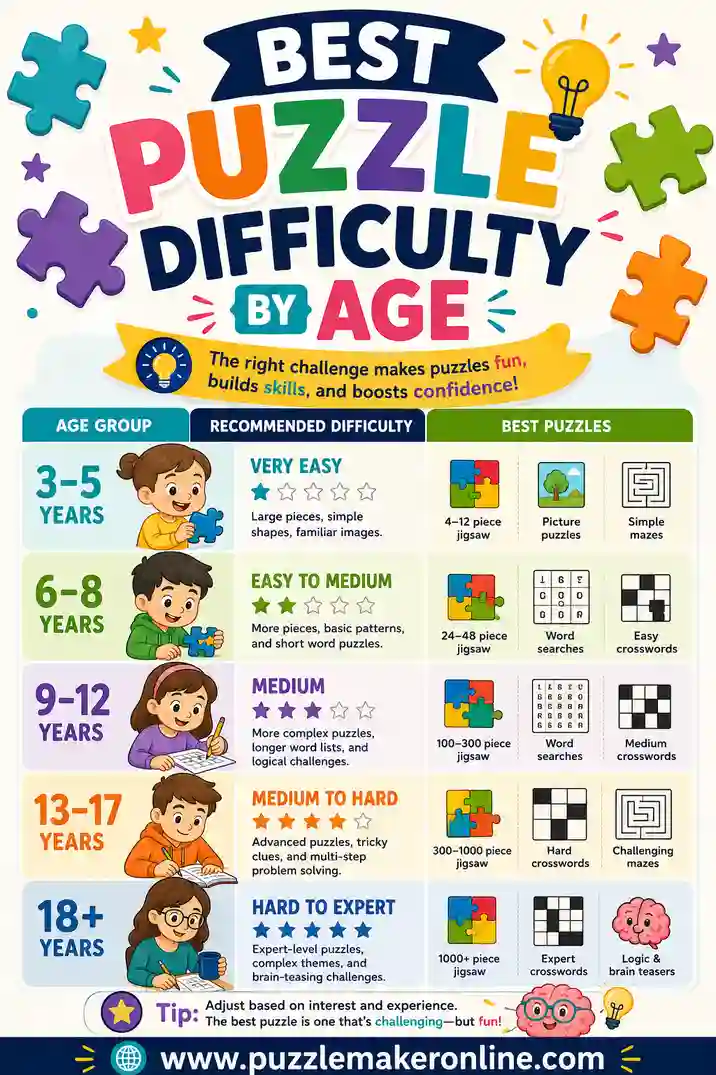
- Set the options. Choose grid size and difficulty to match your audience. Our best puzzle difficulty by age guide helps you pick.
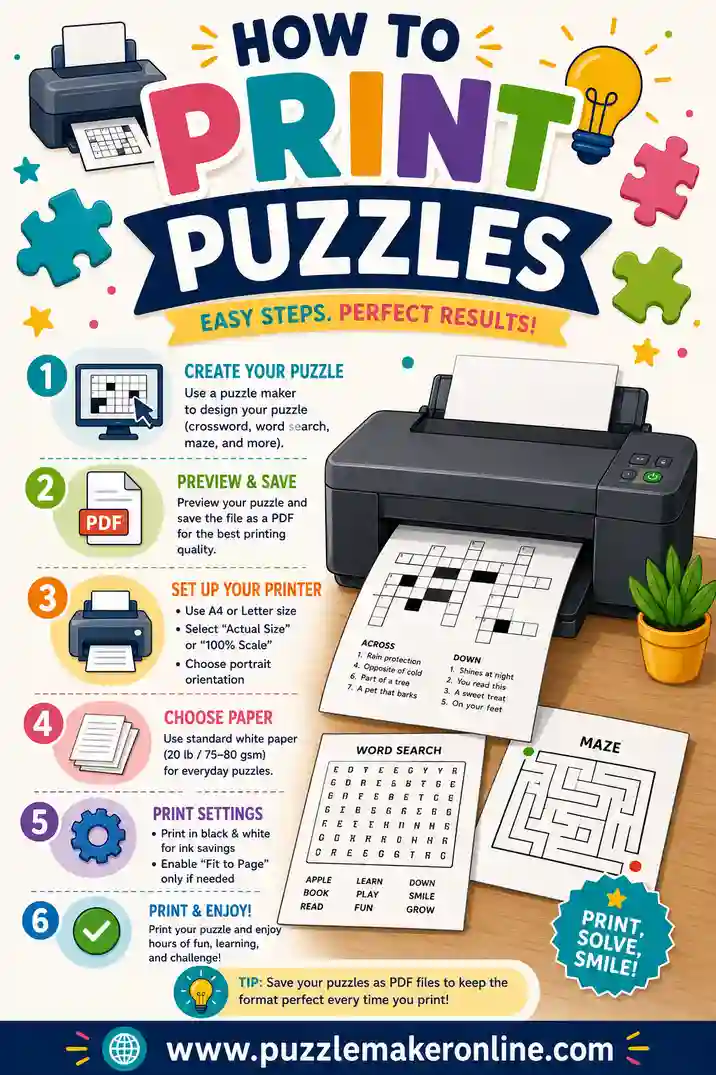
- Print. Hit print and you're done. For crisp results, see our tips on how to print puzzles.
That's the whole thing. From blank page to printed puzzle in about a minute, with no cells to size or letters to type.
Frequently Asked Questions
Can you make a word search in Microsoft Word?
Yes. You insert a square table, type your hidden words across and down, then fill every other cell with random letters and hide the borders. It works, but placing each letter and filling the blanks by hand is slow, so most people prefer a generator for anything beyond a single puzzle.
How do I make a crossword in Word?
Sketch your layout on paper first so words cross at shared letters, then build a table, black out the unused cells, number the starting squares, and type your Across and Down clues. The tricky part is planning the overlaps, which Word won't do for you.
Is it free to make puzzles in Word?
Only if you already own Microsoft Word, which is paid software. A free online puzzle maker needs no install and no purchase, builds the grid for you, and prints clean puzzles in seconds, which is why many people skip Word entirely.
What's the easiest puzzle to make in Word?
A word scramble. There's no grid to build, you just type your words, jumble the letters of each one, and add a blank for the answer. Word searches and crosswords take far more manual setup.
Why is making puzzles in Word so slow?
Because Word doesn't understand puzzles. It won't hide words, fill a grid, or check that crossword answers intersect, so you do all of that by hand. A dedicated puzzle maker automates exactly those steps, which is where the time savings come from.
Can I reuse a puzzle I made in Word?
Yes, you can save and reprint it, but every copy will be identical. If you want unique versions for each person, you'd have to rebuild the grid each time. A generator can produce fresh, varied puzzles from the same word list instantly.
How do I make square cells in Word?
Select the whole table, open Table Properties, and on the Row tab set a height with "Row height is" set to Exactly. Then set the column width on the Column tab to the same number, such as 0.35 inches. Equal height and width give you square cells that will not stretch when you type.
How do I number crossword squares in Word?
Select the white cells, align them Top Left, and use a small font size of about 7 pt. Then type a number in each cell where an answer starts, counting left to right across each row from the top. The small numbers sit in the corner and leave space for the solver's letters.
Is there a crossword template in Word?
Word has no built-in crossword template, but you can make your own. Build one blank grid with square cells, then save it with the Word Template file type so you can reuse it. A free online puzzle maker is the faster option if you want the grid and word placement done for you.
How do I make a crossword grid bigger than 10 by 8 in Word?
The quick table picker only drags out a small grid. Choose Insert, Table, Insert Table instead, and type the number of columns and rows you want, such as 15 by 15. Then set the row height and column width so the cells stay square.
Ready to Skip the Manual Work?
Making puzzles in Word is doable, but it's a lot of clicking, typing, and proofreading. If you'd rather spend that time doing something else, grab the word list above, open the free puzzle maker, and print a finished word search, crossword, or scramble in about a minute. It's free, there's nothing to install, and every puzzle comes out clean and ready to play.